
Overview
The Zoom connection is per-user — each person connects their own Zoom account. Once connected, someone can be set as the Zoom host on a guide’s calendar, and every event that guide schedules creates a Zoom meeting on that host’s account, with the join link on the invite. When a host isn’t valid, Thread falls back to Google Meet and tells you why, in plain language.Benefits
Real Zoom Meetings
Scheduled events get a Zoom link created on the host’s own account
Clear Host Picker
Every person shows whether they can host, and the reason if they can’t
Safe Fallback
If the host loses Zoom, new bookings use Google Meet — bookings already made keep their Zoom links
Everyone Gets Told
The organizer and the host are notified when a host disconnects
Setup Instructions
1
Open Connectors
In Thread, go to Settings → Connectors and find Zoom. Zoom always appears here, even before anyone has connected it.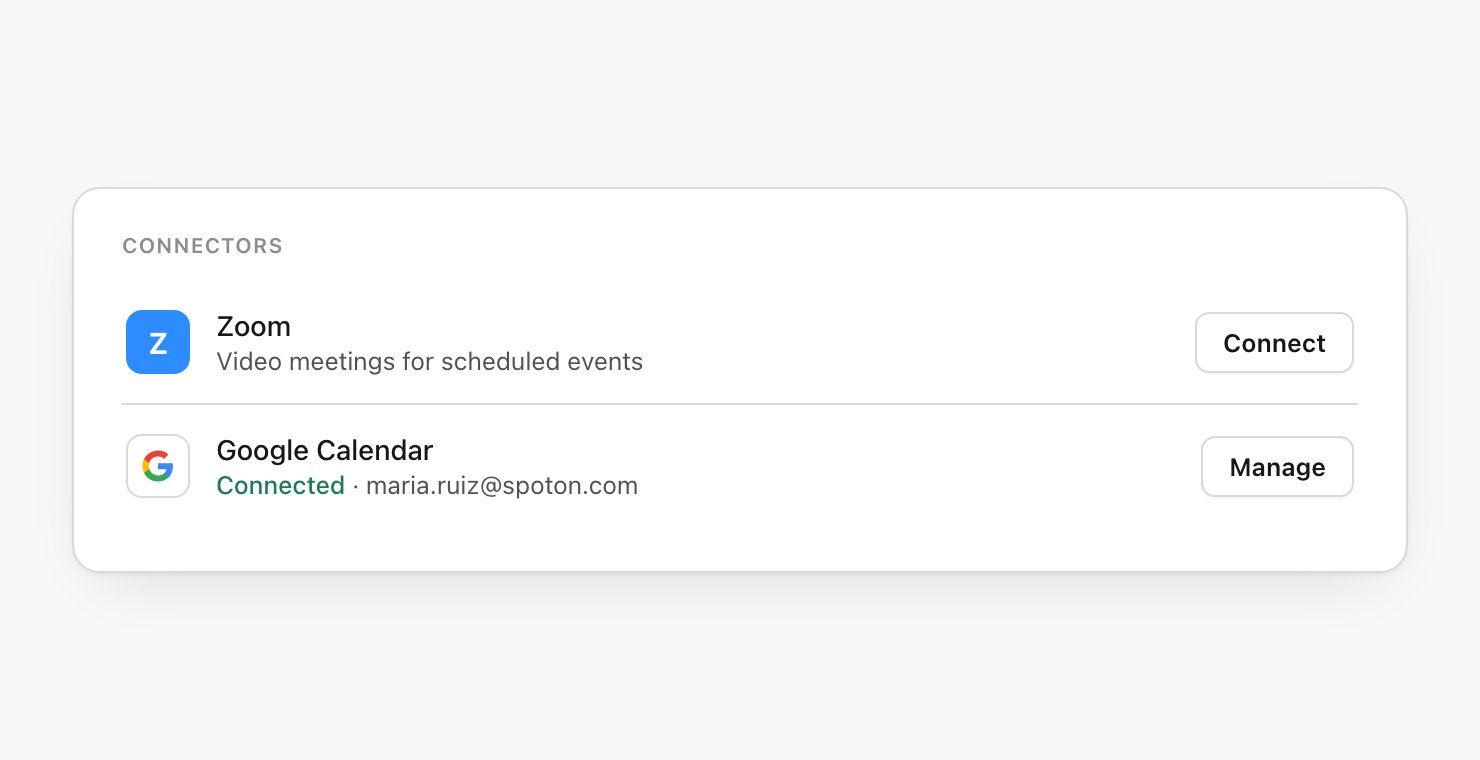
2
Authorize Thread in Zoom
Select Connect. You’re sent to Zoom’s own authorization screen — sign in if needed and approve the access Thread requests to create and manage meetings on your behalf. Zoom returns you to Thread automatically.
3
Confirm it shows Connected
Back in Thread, the Zoom row shows the connected account with a green Connected badge. You can now be chosen as a Zoom host on any guide’s calendar.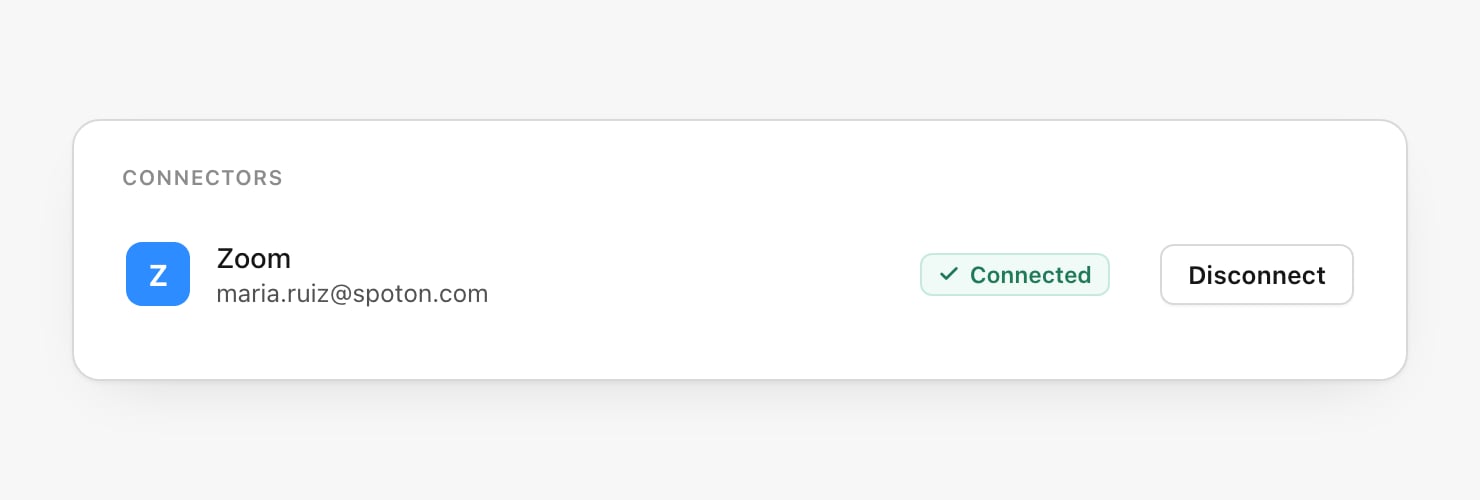
Because the connection is per-user, anyone you want to host meetings connects their own Zoom
account. The host’s account is the one that creates the meeting.
Add Zoom links to scheduled events
Meeting links live in a guide’s calendar settings, alongside who’s in the meeting. The link type is a single control with three choices, and choosing Zoom reveals who will host.1
Open the guide's calendar settings
From the guide, open its calendar settings — the same dialog where you set who’s required and who’s optional for a booking — and scroll to Meeting link.
2
Set the meeting link to Zoom
Meeting link offers No link, Google Meet, or Zoom. Choose Zoom and a Zoom host picker appears below it. Switching away hides the picker but keeps the saved host, so flipping back doesn’t lose your choice.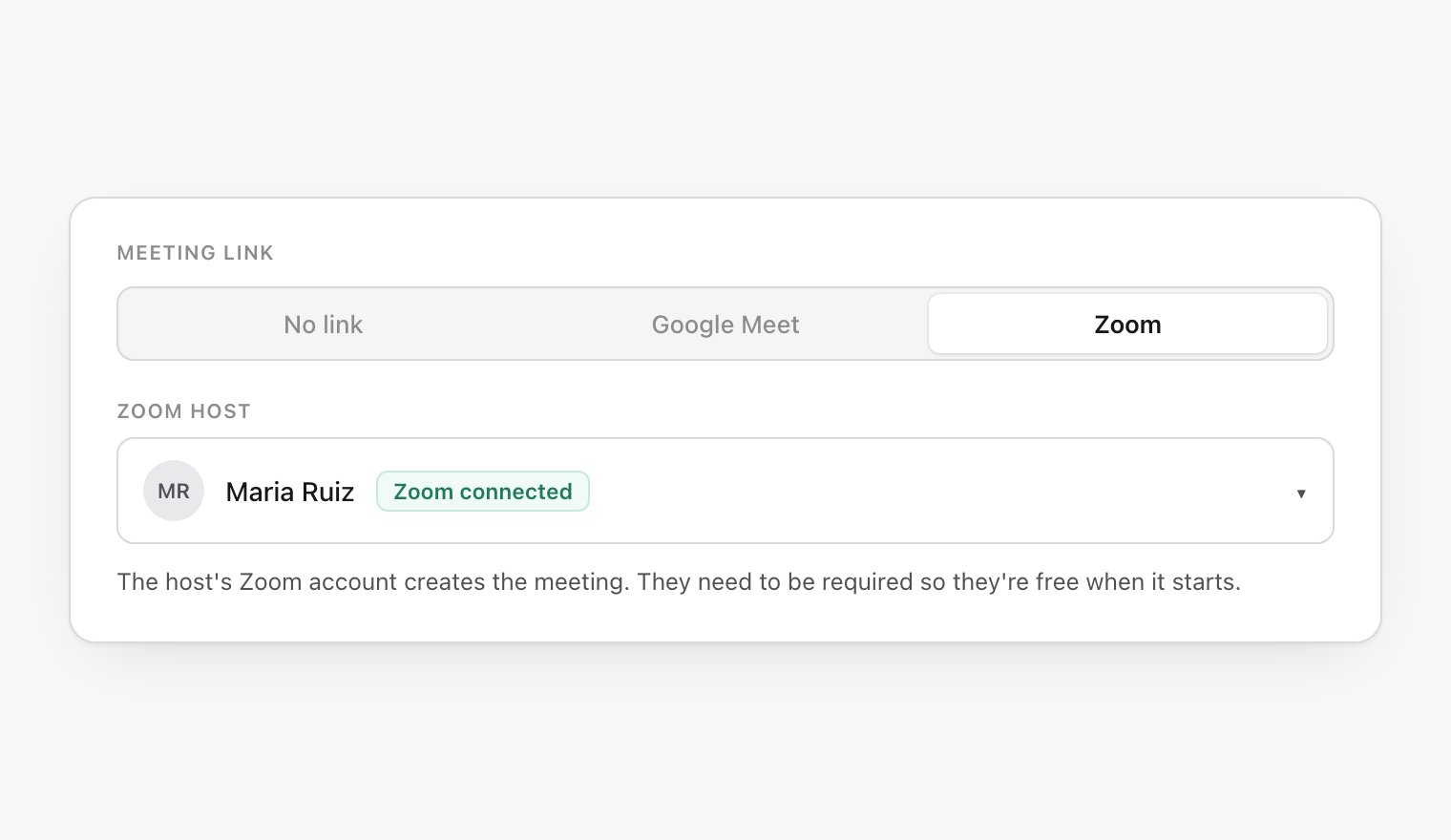
3
Pick the Zoom host
Open the picker and everyone on the calendar appears, each with a line saying why they can or can’t host. Someone connected and required is selectable; a free Zoom account is still selectable but warns about the 40-minute limit; an optional person is disabled until you make them required; someone outside your organization can’t host.If you haven’t connected Zoom, the row offers Connect Zoom. A teammate who hasn’t connected gets an Ask to connect button that sends them an in-app notification and an email.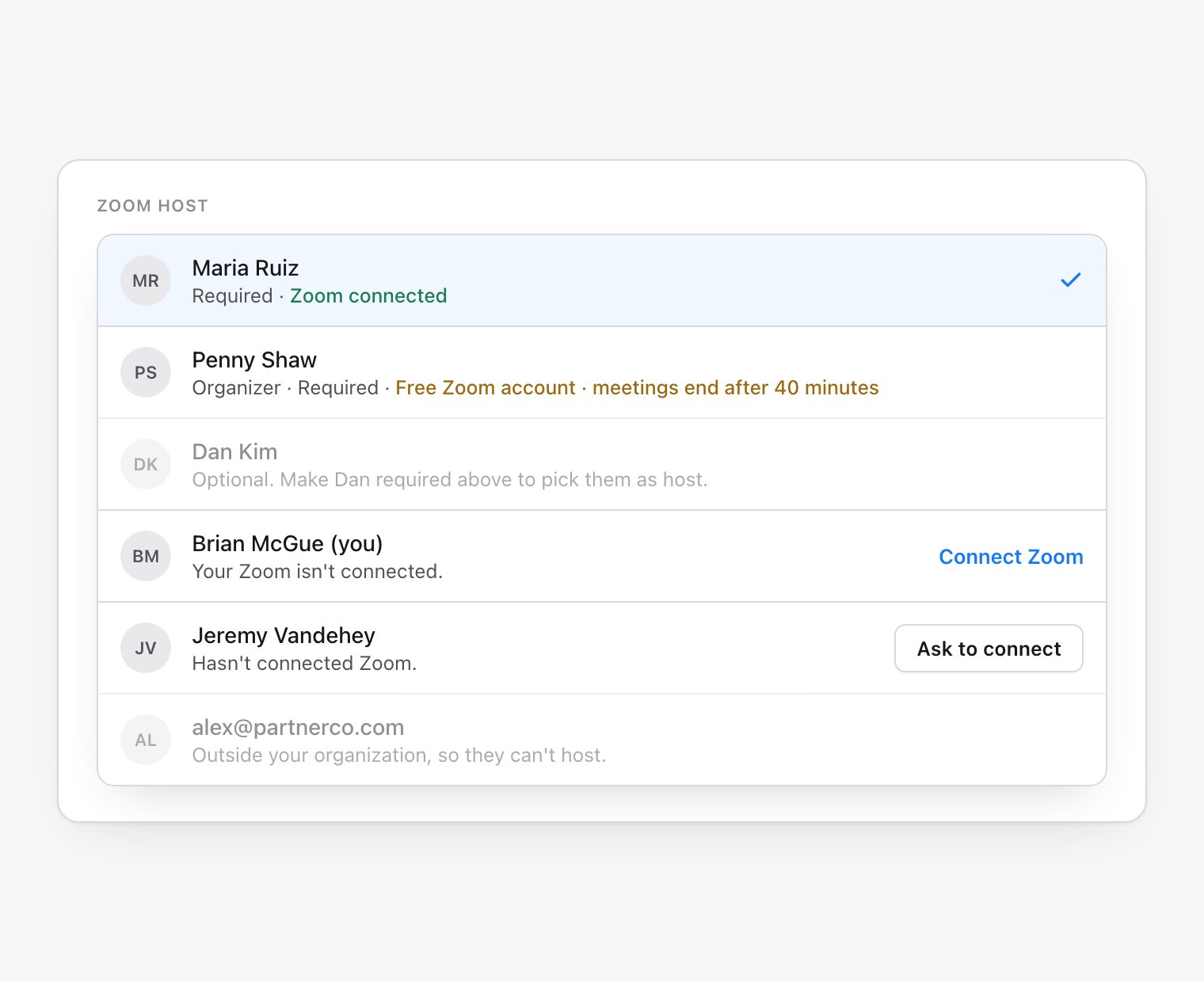
4
Save
Save the calendar settings. From now on, every time the guide books one of these events, Thread creates the meeting on the host’s Zoom account and puts the join link on the invite.
What happens at the edges
The host can’t quietly stop being valid
On the host’s own row, Optional and Remove are disabled. Trying either shows a note in place of a tooltip — so it works on touch screens too — telling you to pick another Zoom host first. Nothing silently falls back to Google Meet because of an edit here.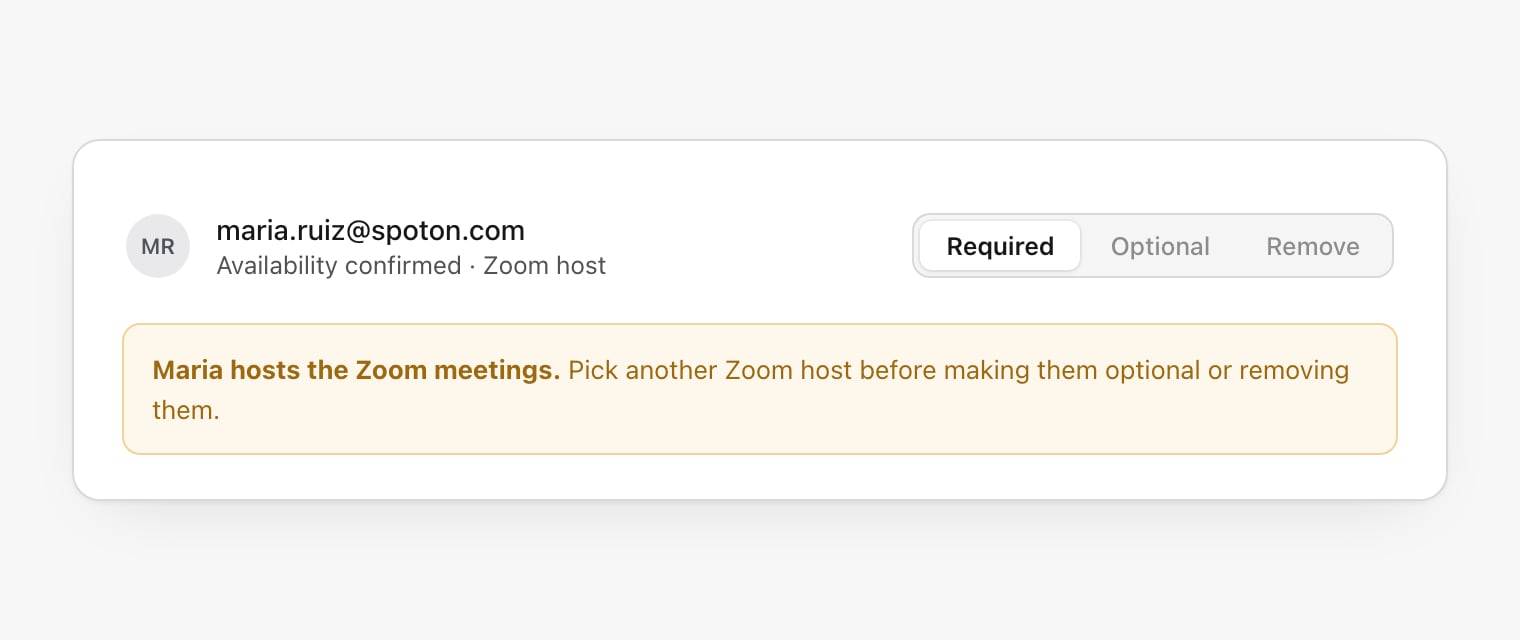
Disconnecting Zoom while hosting warns first
If the host disconnects Zoom, the disconnect dialog lists exactly which guides use them as host and what those bookings fall back to.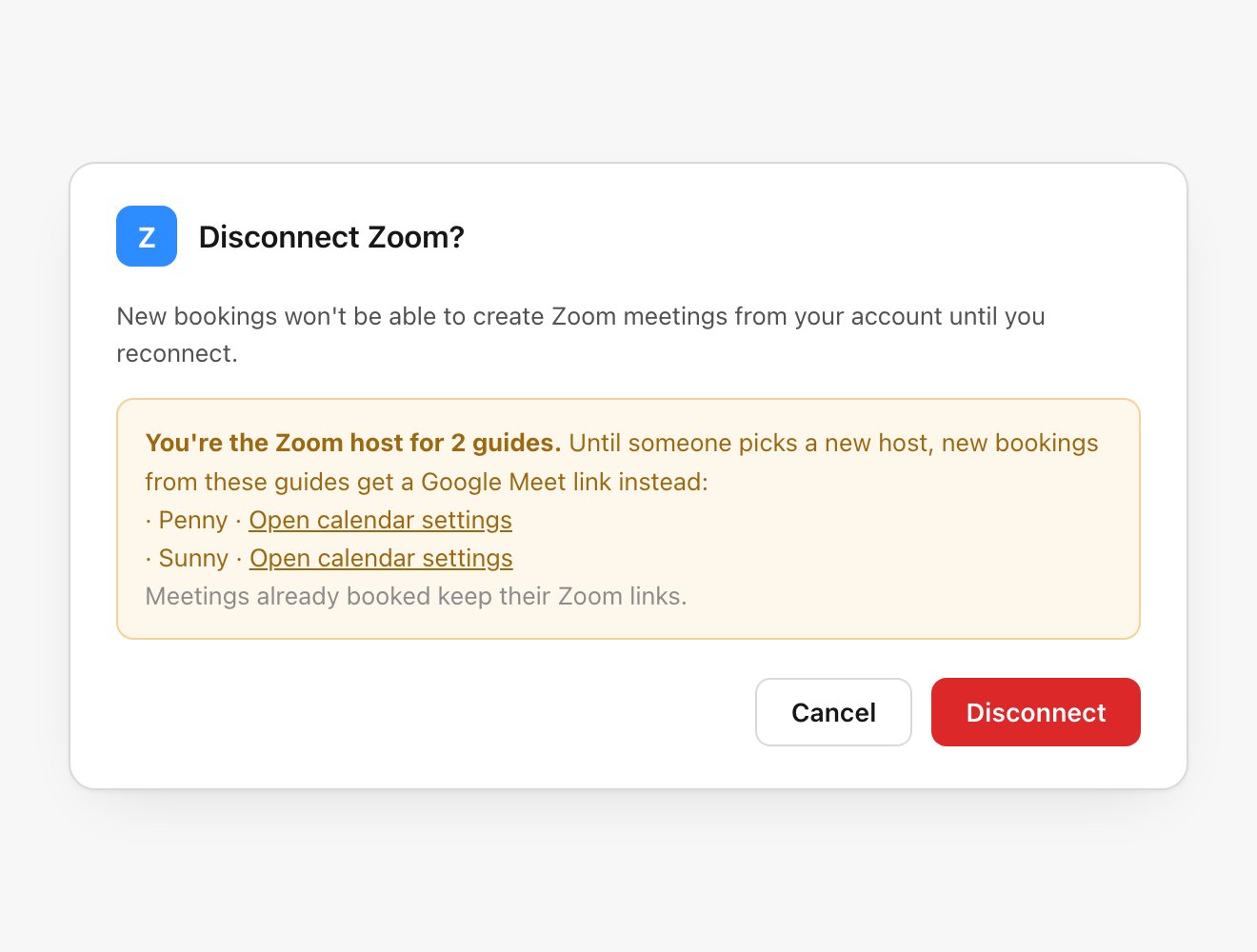
The organizer and the host both get told
When a host disconnects, two notifications go out — one to the calendar’s organizer, one to the person who disconnected — in the in-app inbox and by email. The same pair sends if someone removes the app from inside Zoom. If the organizer and the person who disconnected are the same, they get only the organizer message.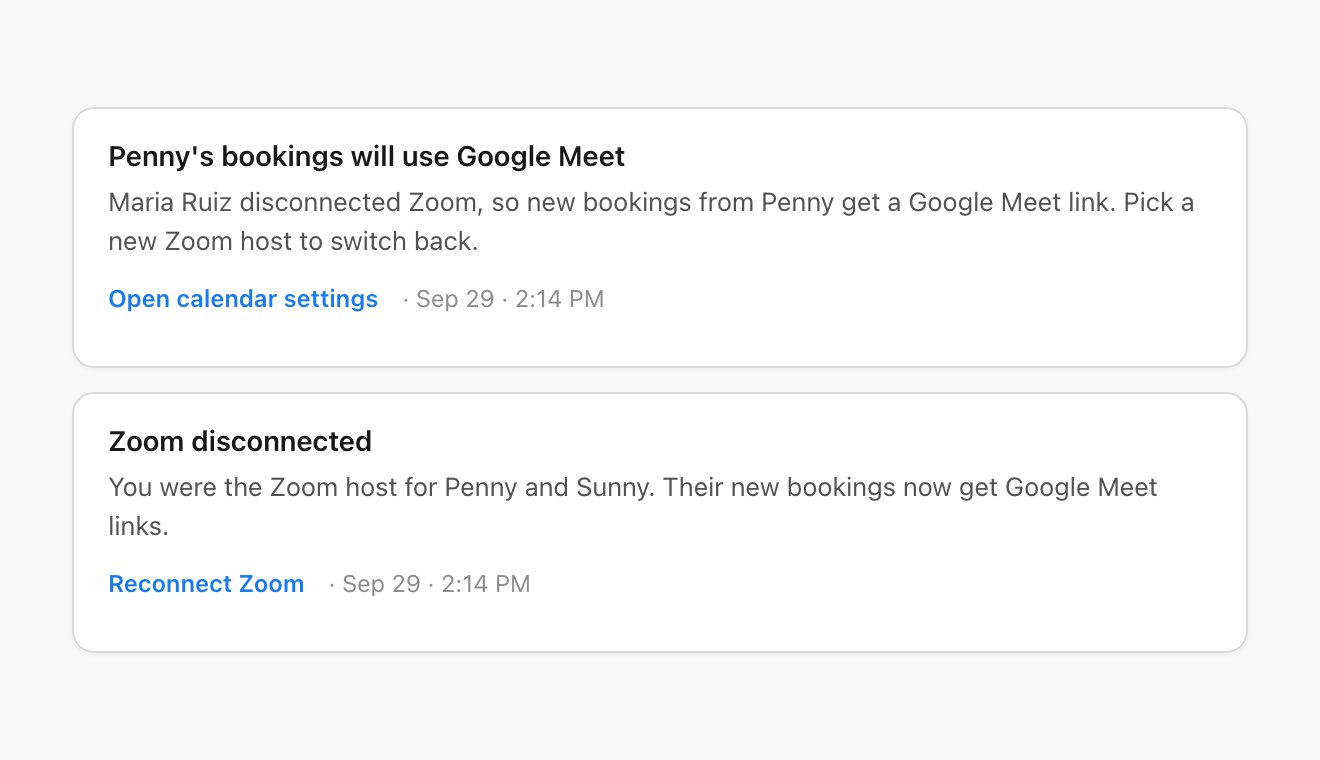
The agent explains a Meet fallback without apologizing
If a booking has to use Google Meet because the host lost Zoom, the booking result says why — plainly, to you and in the guide’s run. The customer isn’t told; a working link is all they need.Troubleshooting
I don't see Zoom as a meeting-link option
I don't see Zoom as a meeting-link option
Zoom always appears under Meeting link, even before anyone connects it. If it’s missing, reopen
the guide’s calendar settings so they finish loading. To make it selectable as a host,
connect Zoom under Settings → Connectors first.
A person I want can't be selected as host
A person I want can't be selected as host
The picker names the reason on their row. The common ones: they’re Optional (make them
Required), they haven’t connected Zoom (use Connect Zoom or Ask to connect), they’re
outside your organization (they can’t host), or they’re on a free Zoom account
(selectable, but meetings end after 40 minutes).
My meetings switched to Google Meet on their own
My meetings switched to Google Meet on their own
The Zoom host disconnected Zoom, or removed Thread from inside Zoom. New bookings fall back to
Google Meet until a valid host is set. Reconnect Zoom, or open the guide’s calendar settings and
pick another connected host. Meetings already booked keep their original Zoom links.
Can the customer or an outside guest be the host?
Can the customer or an outside guest be the host?
No. The host has to be someone in your organization with Zoom connected, because the meeting is
created on their account. The customer is always invited to the times offered, but never hosts.
Next Steps
Google Workspace
Calendar availability and event creation, plus the Google Meet fallback
Guide channels
How guides schedule and meet alongside email, SMS, and voice