> ## Documentation Index
> Fetch the complete documentation index at: https://docs.thread.app/llms.txt
> Use this file to discover all available pages before exploring further.
# Customer portal experience
> What your customer sees: their plan, their actions, their team — branded as yours, mirrored from your workflows in real time.
Customers don't want a project in your tool. They want to know what's happening, what they need to do next, and who they can ask if they're stuck. The Thread portal gives them that — branded as you, lightweight, and synced live to the same plan you're driving from your side.
 ## What it looks like
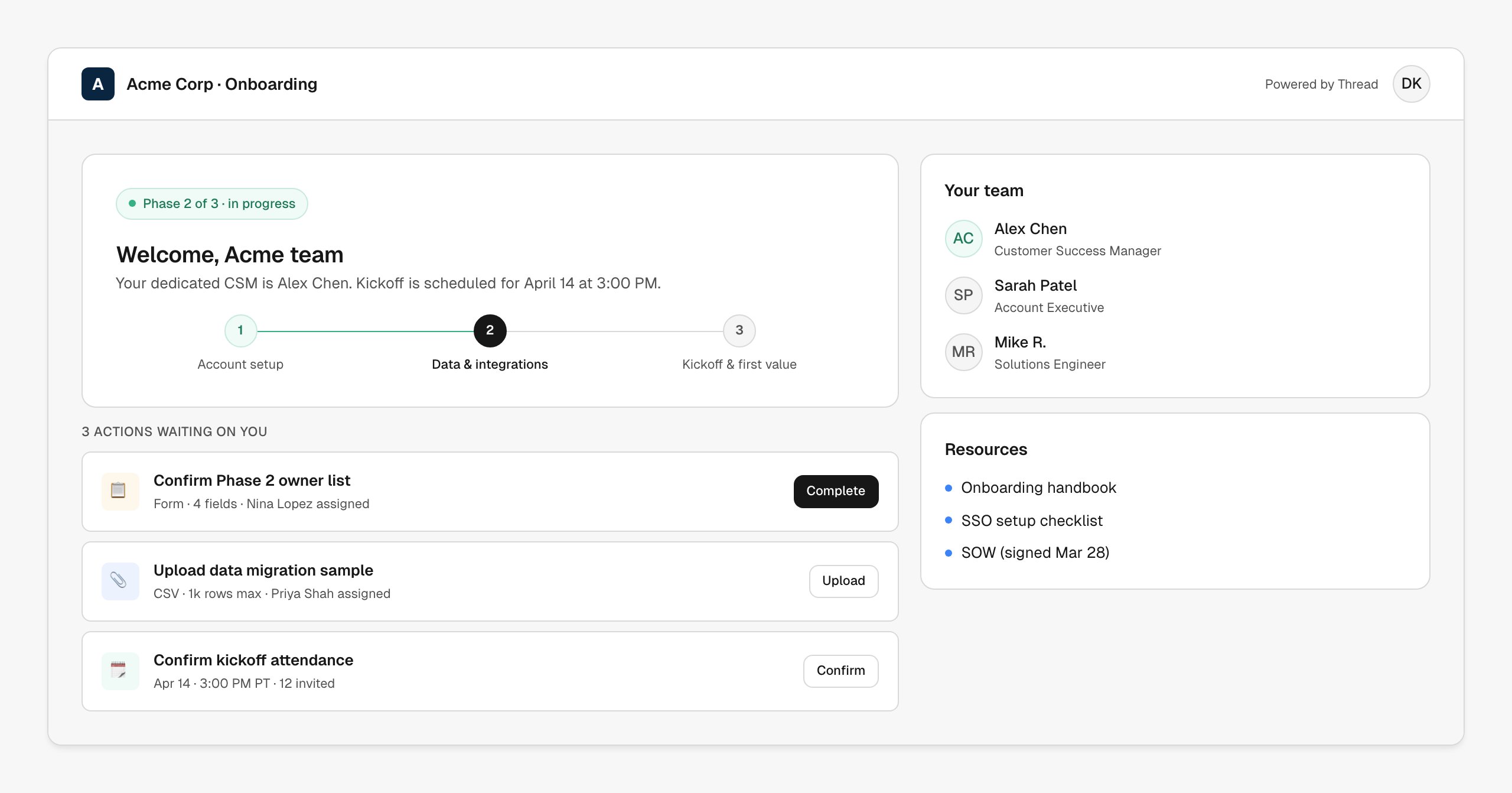
A clean, focused page: where they are in the journey (the stepper), what's waiting on them right now (the action cards), and who they can reach (the team). Resources — handbooks, signed docs, setup guides — sit in a sidebar. No app to install, no password to manage; the customer accesses via a tokenized link.
Everything is the same plan you see internally — same phases, same milestones, same task statuses. Updates from either side propagate immediately.
## How it's wired up
The portal is generated automatically when an account is created. You control:
| Configuration | Where |
| ---------------------------------------- | --------------------------------------------------------------------------------------------------- |
| **Branding** (logo, colors, footer copy) | **[Settings](https://stitch.thread.app/home/settings) → Branding** |
| **Visible plan content** | Per-task visibility toggle in the [success plan template](https://stitch.thread.app/home/templates) |
| **Customer-facing actions** | Action types tagged "customer-facing" (forms, uploads, scheduling, sign-offs) |
| **Team contacts shown** | Auto-populated from the workflow (CSM, AE, optional SE/PM) |
Workflow nodes that target the portal:
* **Form** — customer fills out structured info (use cases, technical requirements, attendee lists)
* **Upload** — customer drops files (signed SOW, sample data, branding assets)
* **Sign-off** — customer marks a milestone complete on their side
* **Schedule** — customer picks a time from your team's calendar
## Customize the experience
The portal is heavily customizable per account or per workflow:
* Re-skin per customer (some teams white-label entirely; others co-brand)
* Hide or show the team contacts panel
* Pin custom resources per account (their kickoff deck, their SOW)
* Adjust the stepper phases to match your motion
## When to use it
* Always on for onboarding. The stepper + actions experience is the lowest-friction way to keep customers moving.
* Especially valuable when your customer team is more than two people, when you have shared Slack channels but want a "single source of truth," or when handoffs across customer functions (champion → admin → end-user) need a visible plan.
## Next steps
Make the portal feel like yours.
What the customer sees on the plan side.
Pair the portal with shared Slack channels for daily comms.
## What it looks like
A clean, focused page: where they are in the journey (the stepper), what's waiting on them right now (the action cards), and who they can reach (the team). Resources — handbooks, signed docs, setup guides — sit in a sidebar. No app to install, no password to manage; the customer accesses via a tokenized link.
Everything is the same plan you see internally — same phases, same milestones, same task statuses. Updates from either side propagate immediately.
## How it's wired up
The portal is generated automatically when an account is created. You control:
| Configuration | Where |
| ---------------------------------------- | --------------------------------------------------------------------------------------------------- |
| **Branding** (logo, colors, footer copy) | **[Settings](https://stitch.thread.app/home/settings) → Branding** |
| **Visible plan content** | Per-task visibility toggle in the [success plan template](https://stitch.thread.app/home/templates) |
| **Customer-facing actions** | Action types tagged "customer-facing" (forms, uploads, scheduling, sign-offs) |
| **Team contacts shown** | Auto-populated from the workflow (CSM, AE, optional SE/PM) |
Workflow nodes that target the portal:
* **Form** — customer fills out structured info (use cases, technical requirements, attendee lists)
* **Upload** — customer drops files (signed SOW, sample data, branding assets)
* **Sign-off** — customer marks a milestone complete on their side
* **Schedule** — customer picks a time from your team's calendar
## Customize the experience
The portal is heavily customizable per account or per workflow:
* Re-skin per customer (some teams white-label entirely; others co-brand)
* Hide or show the team contacts panel
* Pin custom resources per account (their kickoff deck, their SOW)
* Adjust the stepper phases to match your motion
## When to use it
* Always on for onboarding. The stepper + actions experience is the lowest-friction way to keep customers moving.
* Especially valuable when your customer team is more than two people, when you have shared Slack channels but want a "single source of truth," or when handoffs across customer functions (champion → admin → end-user) need a visible plan.
## Next steps
Make the portal feel like yours.
What the customer sees on the plan side.
Pair the portal with shared Slack channels for daily comms.