> ## Documentation Index
> Fetch the complete documentation index at: https://docs.thread.app/llms.txt
> Use this file to discover all available pages before exploring further.
# Slack
> Send updates, handover briefs and milestone celebrations into Slack channels — your customer's, your team's, or both.
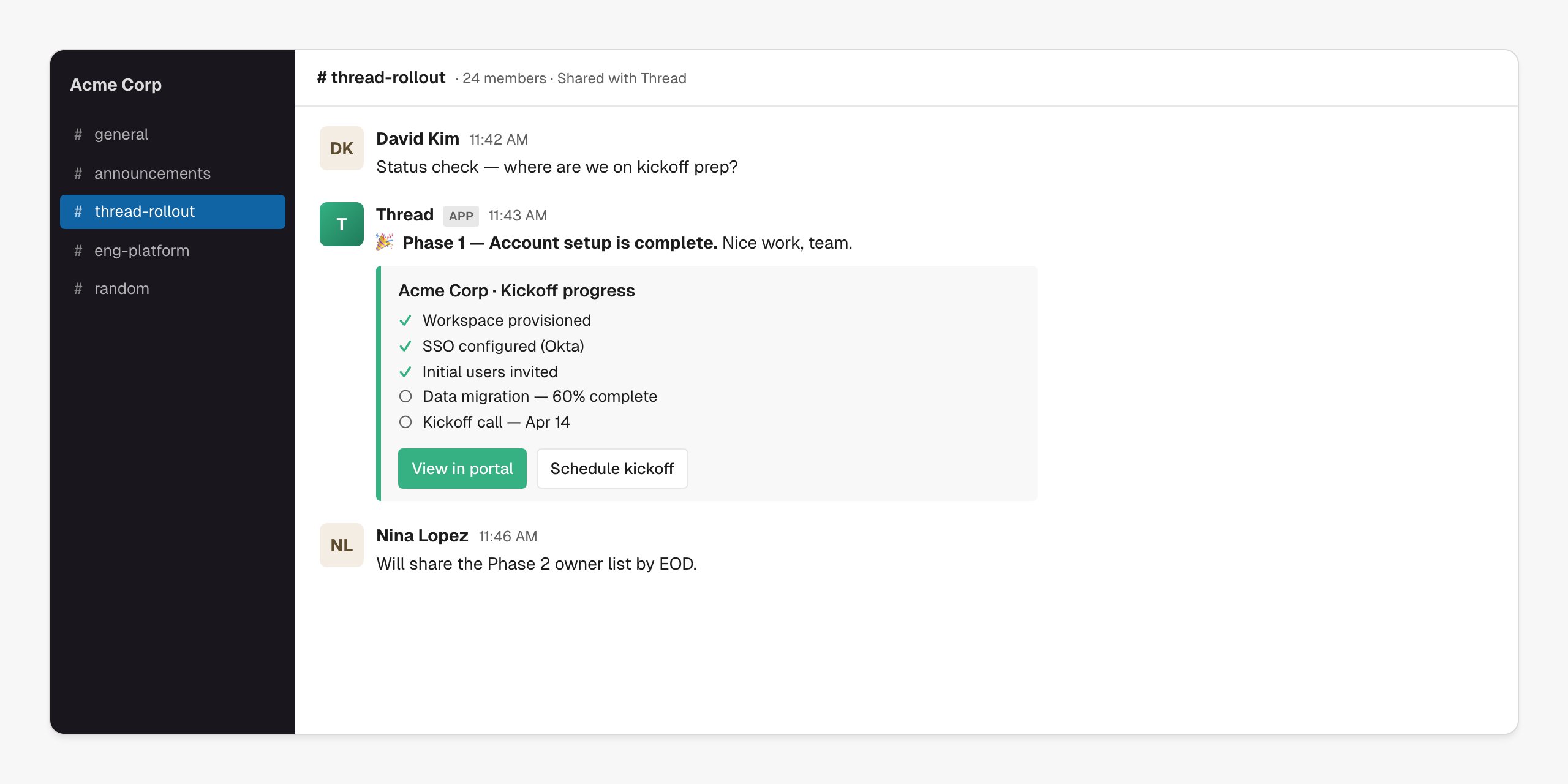
Most of customer success happens in chat. Connecting Slack lets Thread post directly into shared channels with the customer (and your internal channels) — milestone updates, kickoff briefs, action reminders, launch celebrations — all timed off the workflow, all linkable back to the account portal.
 ## What you can build
Live status updates posted to a shared channel as milestones progress.
Drop the AE → CSM brief into a shared channel as part of the introduction.
Page the right CSM channel the moment a new account is routed.
Use Slack as the day-to-day surface; the portal as the source of truth.
## Connect Slack
Go to **[Connectors → Slack](https://stitch.thread.app/home/connectors/slack)** in Thread, click **Connect**, and sign in to Slack to approve the workspace install. Thread requests permission to read your channel list and post messages — that's it.
The Thread app only posts to channels it's been invited into. In each shared/internal channel: type `/invite @Thread`. Channel admins can do this in bulk via Slack's app settings.
Under **[Connectors → Slack](https://stitch.thread.app/home/connectors/slack)**, set the default internal channel for CSM alerts and the default shared-channel pattern for new customer rollouts. Workflows can override these per-account.
## Use Slack in a workflow
Drop a **Send to Slack** action into any workflow. Choose the channel, pick a template (or write inline), and reference any account variable.
| Trigger | What gets posted |
| -------------------- | -------------------------------------------------------------------------------- |
| Milestone complete | "🎉 Phase 1 — Account setup is complete" with progress checklist + portal link |
| Action overdue | "Heads up — the technical requirements form is still outstanding" with form link |
| New account assigned | Internal alert to the CSM's channel with handover brief link |
| Account at risk | Internal alert with risk reason and current owner |
| Launch | Public celebration in the shared channel |
Messages support Slack markdown (`*bold*`, `_italic_`, `:emoji:`, `> quote`, code blocks) and Thread variables like `{{ account.name }}`, `{{ milestone.name }}`, `{{ csm.first_name }}`.
## Tips from the field
A Slack Connect channel per customer makes Thread feel like a teammate, not a tool.
Two lines plus a portal link beats a wall of text every time.
Reserve `@here` for rollout-blocking moments. Routine updates don't need pings.
The portal is the source of truth. Slack messages link back to it.
## Troubleshooting
The Thread app isn't in that channel yet. In Slack: `/invite @Thread`, then re-run the action.
Check the connection status in **[Connectors → Slack](https://stitch.thread.app/home/connectors/slack)**. If the workspace was reinstalled or the user who connected left, reconnect from a current admin account.
Confirm the workflow targets a Slack Connect (shared) channel and not your internal-only channel. Channel type is shown next to the channel name in the action editor.
The variable name doesn't match a field on the account, or it was applied before the account had data. Check spelling against the variable picker in the action editor.
## Next steps
Build the Slack-native kickoff experience.
Full reference for the Send to Slack action node.
## What you can build
Live status updates posted to a shared channel as milestones progress.
Drop the AE → CSM brief into a shared channel as part of the introduction.
Page the right CSM channel the moment a new account is routed.
Use Slack as the day-to-day surface; the portal as the source of truth.
## Connect Slack
Go to **[Connectors → Slack](https://stitch.thread.app/home/connectors/slack)** in Thread, click **Connect**, and sign in to Slack to approve the workspace install. Thread requests permission to read your channel list and post messages — that's it.
The Thread app only posts to channels it's been invited into. In each shared/internal channel: type `/invite @Thread`. Channel admins can do this in bulk via Slack's app settings.
Under **[Connectors → Slack](https://stitch.thread.app/home/connectors/slack)**, set the default internal channel for CSM alerts and the default shared-channel pattern for new customer rollouts. Workflows can override these per-account.
## Use Slack in a workflow
Drop a **Send to Slack** action into any workflow. Choose the channel, pick a template (or write inline), and reference any account variable.
| Trigger | What gets posted |
| -------------------- | -------------------------------------------------------------------------------- |
| Milestone complete | "🎉 Phase 1 — Account setup is complete" with progress checklist + portal link |
| Action overdue | "Heads up — the technical requirements form is still outstanding" with form link |
| New account assigned | Internal alert to the CSM's channel with handover brief link |
| Account at risk | Internal alert with risk reason and current owner |
| Launch | Public celebration in the shared channel |
Messages support Slack markdown (`*bold*`, `_italic_`, `:emoji:`, `> quote`, code blocks) and Thread variables like `{{ account.name }}`, `{{ milestone.name }}`, `{{ csm.first_name }}`.
## Tips from the field
A Slack Connect channel per customer makes Thread feel like a teammate, not a tool.
Two lines plus a portal link beats a wall of text every time.
Reserve `@here` for rollout-blocking moments. Routine updates don't need pings.
The portal is the source of truth. Slack messages link back to it.
## Troubleshooting
The Thread app isn't in that channel yet. In Slack: `/invite @Thread`, then re-run the action.
Check the connection status in **[Connectors → Slack](https://stitch.thread.app/home/connectors/slack)**. If the workspace was reinstalled or the user who connected left, reconnect from a current admin account.
Confirm the workflow targets a Slack Connect (shared) channel and not your internal-only channel. Channel type is shown next to the channel name in the action editor.
The variable name doesn't match a field on the account, or it was applied before the account had data. Check spelling against the variable picker in the action editor.
## Next steps
Build the Slack-native kickoff experience.
Full reference for the Send to Slack action node.